
Back to Help & Getting Started
Let pupils send an enquiry from your website’s Contact page to a mailbox you monitor. The form is included in DSW; you do not need a separate form plugin or CAPTCHA account. Your hosting must be able to send WordPress email.
Before you begin
Complete your DSW setup and make sure the Contact page is shown on your website. Have a working email address you can check. Your public email/contact choices are separate: entering an address in Business & Contact does not switch this form on.
1. Open Website Enquiries
In your WordPress administration, open DSW > Website Enquiries. From Getting Started you can also use Website enquiry form.
2. Enable the form and choose the receiving address
Under Enable form and receiving address, tick Allow pupils to send enquiries from the Contact page. In Where enquiries are sent, enter the one email address you monitor. Check the spelling carefully.
This receiving address is not published by the form. If you separately choose to display a public email address in Business & Contact, that address remains visible.
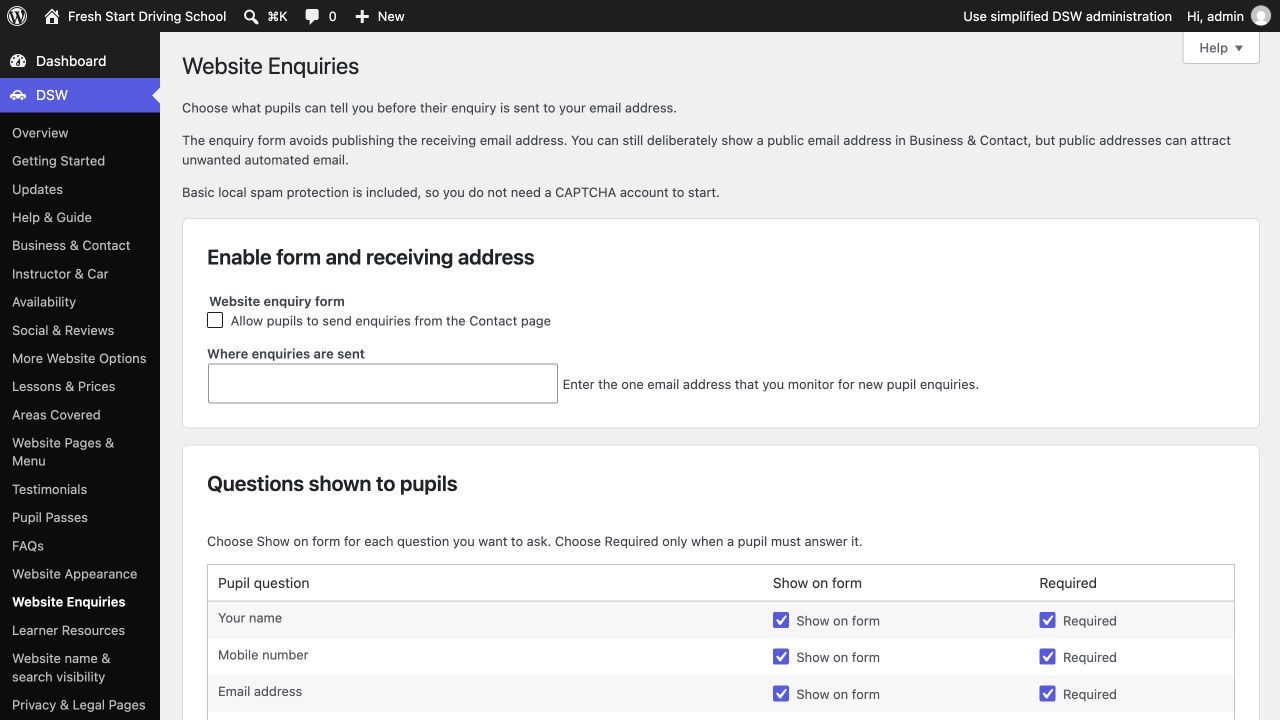
3. Choose the questions pupils answer
Under Questions shown to pupils, choose Show on form for each question you need. Choose Required only when pupils must answer it. Keep the form short; avoid asking for unnecessary personal information. A required question must also be shown.
For example, you can ask for a name, an email or mobile contact and a message. Additional questions include postcode, lesson interests, experience, test status and preferred lesson times. Follow any marked validation messages when saving.
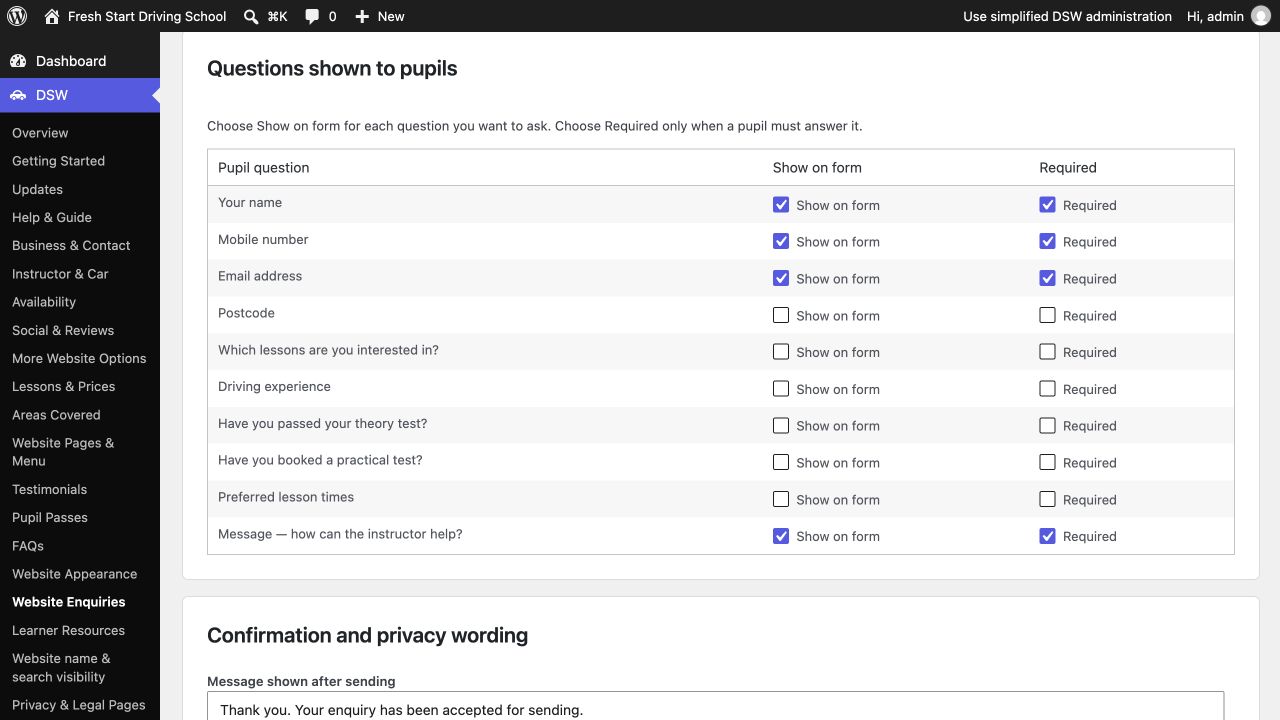
4. Check confirmation and privacy wording
Message shown after sending tells pupils the enquiry has been accepted for sending. Do not promise that it has reached your inbox.
Privacy acknowledgement appears beside a required checkbox. Use wording suitable for your school and review your Privacy page to describe how you use enquiries.
Email subject prefix is optional. A short school name helps you recognise these messages in your inbox.
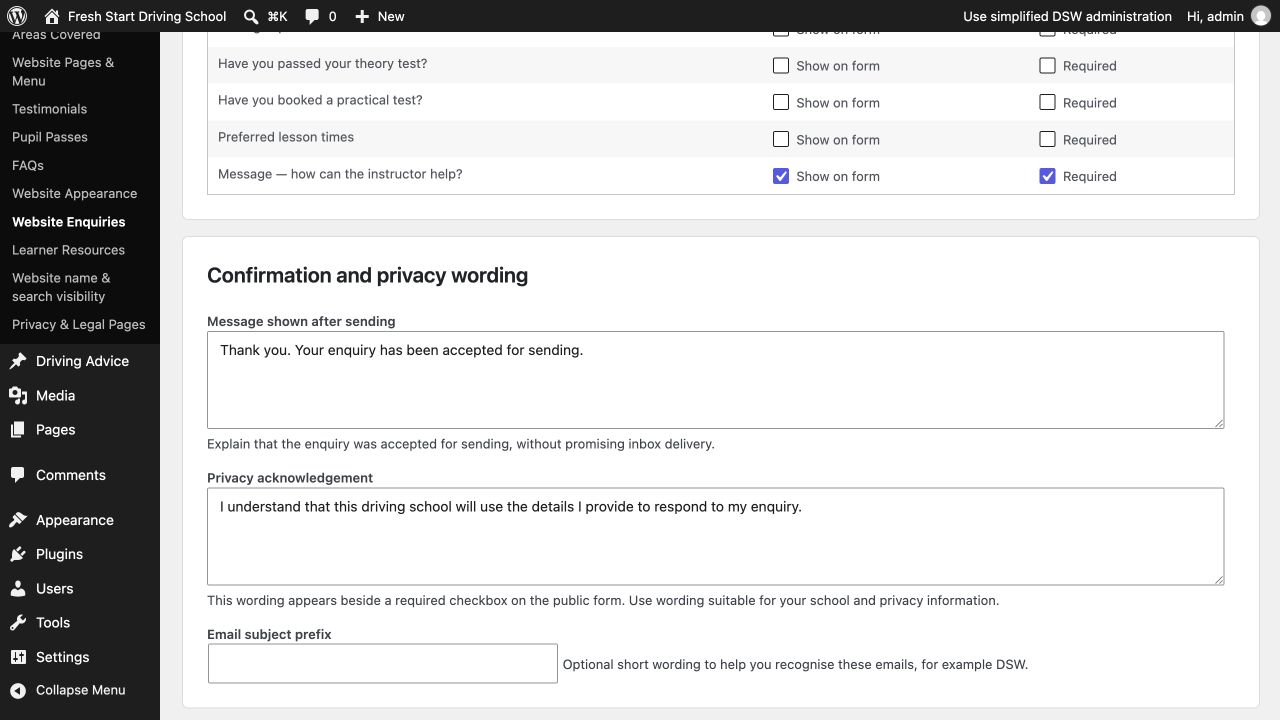
5. Save and check the public Contact page
Select Save enquiry settings. Read the confirmation or correct any marked fields. Open your website’s Contact page and check the form and privacy information. Saving settings may change an existing public page immediately; it is not a private preview.
6. Send a test and confirm delivery
- Use your own test contact details and an obvious message such as “Website enquiry delivery test”. Do not use a real pupil’s information.
- Submit the form once and read the response.
- Check the receiving inbox and spam/junk folder. Confirm the message is actually there and that you can use the supplied contact details to respond.
- Test again after changing the receiving address or your hosting/email arrangements.
A success message is not proof of delivery. DSW sends through WordPress and does not keep a database copy of pupil enquiries. Do not rely on the form until the inbox test succeeds.
If the message does not arrive
Check the saved receiving address and spam folder first. Ask your hosting provider to check WordPress mail delivery. They may recommend configuring an email-sending service or SMTP plugin; this depends on your hosting, not an extra DSW form purchase. Do not guess server settings or send passwords to DSW.
DSW can help explain its form settings. Hosting and mailbox delivery are your provider’s responsibility. Basic spam protection is included, but cannot stop every unwanted message.
If you do not want a form
Leave the enable checkbox unticked, or untick it and save to stop showing the form. Check your other public contact methods still work. Do not enable the form on a fictional public demo solely to demonstrate it.