
You have written a page. Now help pupils find it by adding a link to your website menu. You can put it beside the main links or underneath another link as a dropdown.
Illustrated video · 2 minutes 25 seconds · No sound
Pause and replay at your own pace. Download the video (MP4).
This is an illustrated guide using the real demonstration menu, not a recording of a new menu being saved. Our Your first lesson example is already underneath Lessons & Prices. Do not add a second copy if your page is already there.
Before you start
Follow Add a page of your own first if you have not created your page. Check that it is published and ready for pupils. Save any unfinished work before leaving another screen.
A page and its menu link are different. Publishing a page does not necessarily put it in the menu. Removing a link does not delete the page or make a public page private.
1. Open the WordPress menu editor
In the left administration menu, choose Appearance → Menus. If Appearance is hidden, first choose Show full WordPress administration in the top toolbar. This changes your administration view, not the public website. You can return to simplified DSW administration afterwards.
Do not choose the theme file editor. You do not need to change any code.
2. Choose the existing website menu
The demonstration menu is called DSW Primary Navigation. Your website may use a different name. If WordPress offers a menu selector, choose the existing main website menu and select it. Check that familiar links such as Home and Lessons & Prices appear under Menu structure.
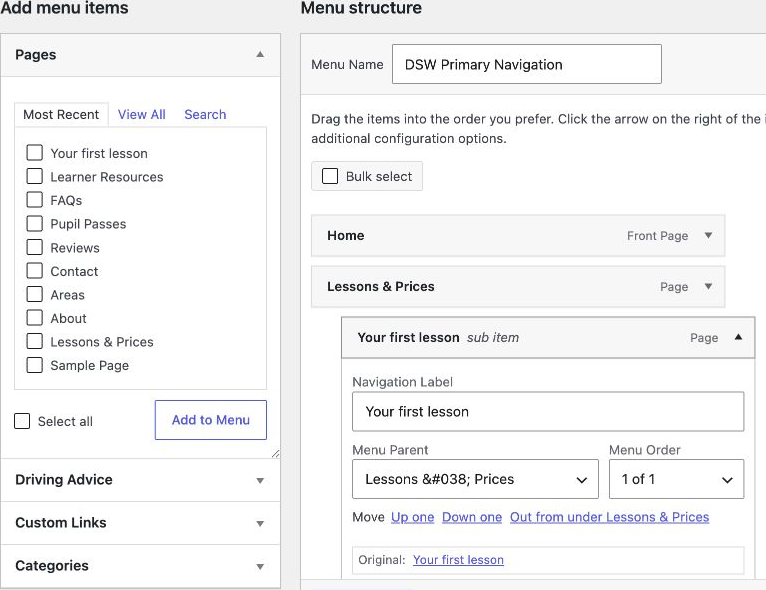
Do not create a new blank menu, choose Delete Menu or change the menu-location boxes for this task. If you have several menus and cannot identify the one your website uses, ask DSW before changing anything.
3. Add your page once
- Find the Pages panel under Add menu items.
- Tick only the page you want, such as Your first lesson.
- If it is missing, try View All or Search. Check that the page is published if you still cannot find it.
- Choose Add to Menu once. Look for the new item in Menu structure, usually at the bottom.
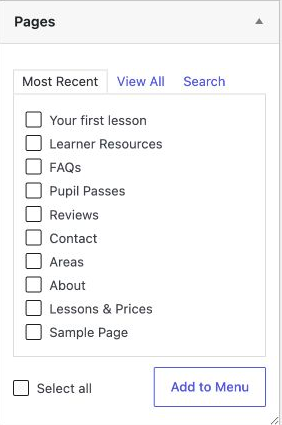
The list on the left contains available pages; the structure on the right contains menu links. A page can therefore appear on both sides. Check the right-hand structure before adding it to avoid duplicates.
4. Choose the wording and order
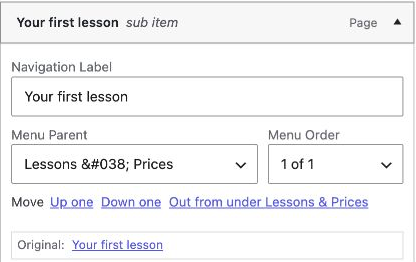
Open the small arrow at the right of your menu item. Navigation Label is the wording pupils see in the menu. Keep it short and meaningful. Changing this label does not rename the page itself or change its content.
Use Menu Order or the move controls to place the link where you want it. You can also drag the item into position. Leave the other links in their existing order unless you intend to change them.
5. Optional: make it a dropdown link
Choose No Parent in Menu Parent for a main-level link. To place it beneath another menu item, choose that item as its Menu Parent. In our example, Your first lesson is beneath Lessons & Prices.
You can also drag the item immediately below its parent and indent it one level to the right. WordPress labels it sub item. Keep the structure simple; one dropdown level is usually enough.
The Parent setting in the page editor is a different setting. It does not, on its own, arrange this navigation menu.
6. Save and check
- Choose Save Menu and wait for the save to finish.
- Open your website and check the link is in the intended position.
- Click the link and confirm it opens the correct page.
- For a dropdown, test the arrow next to the parent item as well as the parent link itself.
- On a phone, open the Menu button and test the new link and any dropdown.

If it does not appear, first confirm that you saved the correct menu and that the target page is published. Refresh the public page. If it is still missing, stop and contact DSW rather than creating more copies or changing menu locations at random.
To change or remove the link later
Return to the same menu and open the item. Change its label, parent or position, then choose Save Menu. To remove just that link, choose Remove inside the item and save the menu. Do not choose Delete Menu.
Removing the link leaves the page in WordPress. People with its address may still read it if it remains public.
What about DSW’s standard pages?
Use DSW → Website Pages & Menu for the supported show-page and include-link choices for optional DSW pages. Testimonials, pupil passes and FAQs need suitable content first. Review the proposed changes before applying them. Those controls are separate from adding a page you created yourself.
Example: an extra page in a submenu
Our demo has an instructor-created page called Your first lesson. Its link sits beneath Lessons & Prices. Open the small submenu control beside the parent link to reveal it; choose the page name to open that page.
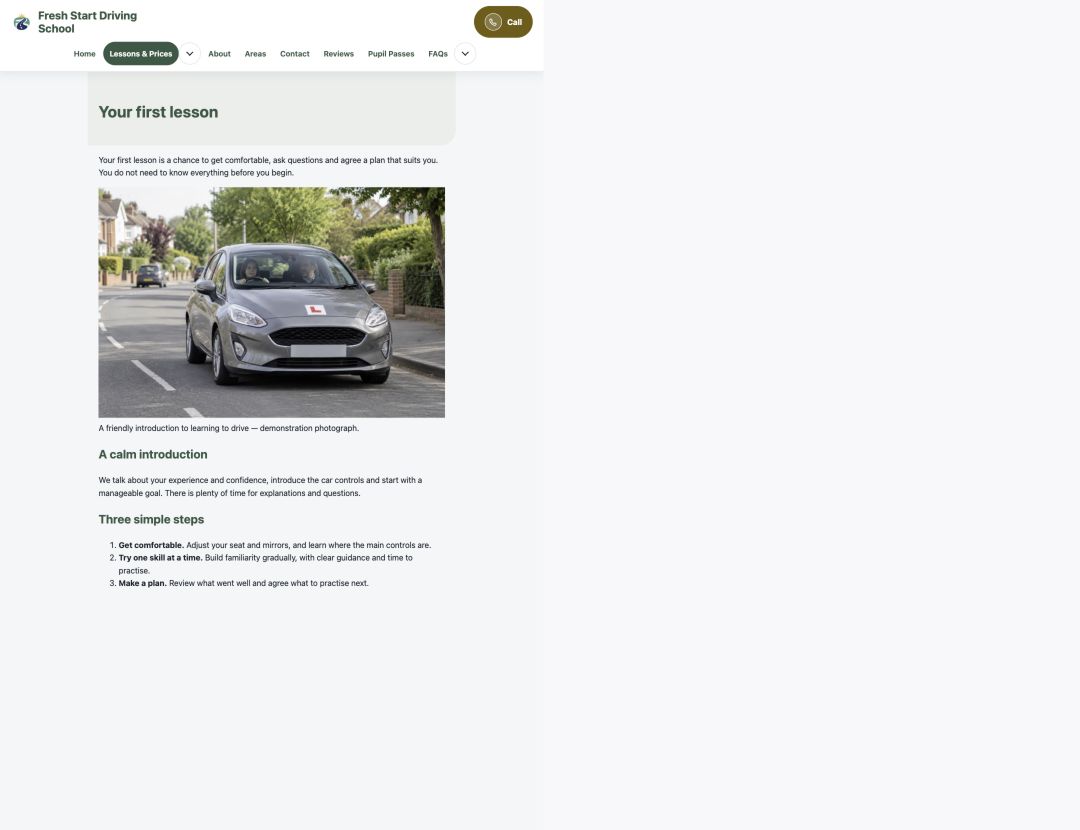
Try the example page and menu on the demo website (new tab).