
Install the DSW system and its included website design. You do not need to build pages or enter your school information yet.
Illustrated video · 1 minute 40 seconds · No sound
Pause or replay whenever useful. This is an illustrated guide using demonstration screenshots, not a recording of a fresh installation. All instructions are shown on screen and written below.
Download the video (MP4, about 3 MB)
Before you begin
No WordPress website ready yet? Start with the preparation checklist. It explains what you need and what to ask your hosting provider.
- Your WordPress administrator sign-in, supplied by your website provider.
- The DSW Core ZIP file from your customer-area download. Keep it zipped.
- A current website backup, or confirmation from your provider that one is available.
If someone is installing DSW for you, ask them to complete this guide. Do not reset an existing website.
Download DSW from your customer account
- Sign in to your DSW customer area using the account created when you purchased DSW.
- Open your DSW Driving School Website System service, then its Downloads tab.
- Download the DSW Core ZIP and save it somewhere you can find, such as your Downloads folder. Keep the ZIP intact.
The DSW customer area manages your subscription and downloads. It is not the WordPress administration area of your driving-school website. The following steps happen on your own WordPress website.
Already have a live website? Read Using DSW on an existing website before installing or changing its design. Prepare on a separate protected test installation and keep a full backup.
1. Open the plugin upload screen
Sign in to WordPress. In its left-hand menu, open Plugins → Add New Plugin, then select Upload Plugin near the top.
Your WordPress version may say Add New or Add Plugins. If you cannot see Plugins, ask the person who manages your website to help with installation.
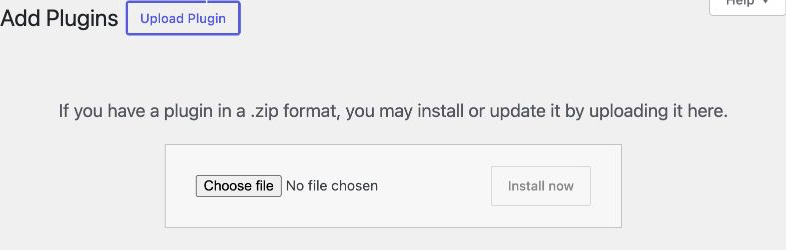
2. Choose the DSW Core file
Select Choose file and find the Core ZIP you downloaded from your DSW customer area. Its name starts with dsw-driving-school-core and ends in .zip; the version number can vary.
Do not unzip it. Do not choose the separate theme/design ZIP or a GitHub source-code download. The Core package includes the website design for the next stage.
Select Install now once the correct file is selected. Wait for WordPress to finish.
3. Activate DSW Core
When WordPress confirms that the plugin was installed, select Activate Plugin.
Installing adds the files; activating switches DSW on. Activating Core does not automatically switch your website design.
4. Open Getting Started
Select Start setup if that link is shown. Alternatively, open DSW → Getting Started in the left-hand menu. You can return here at any time.
5. Install the included website design
In the Website design section, read the explanation. Select Install and activate the DSW theme when you are ready to change your website’s appearance.
If the design is already installed but inactive, the button says Activate the DSW theme instead. This is a separate action from activating Core and changes how public pages look.
6. Check you are ready
The Website design section should say: The DSW theme is installed and active.

You are ready to add your driving-school information using Getting Started. Installing DSW alone does not mean your website is ready to promote to pupils.
Next: Start your driving-school website
If your screen is different
- WordPress asks to replace an existing plugin or theme: stop. This is not the first-install journey; ask your supplier before replacing anything.
- Upload fails or server/FTP details are requested: ask your provider or DSW for help. Do not guess credentials.
- You do not have the correct file: check the Downloads tab of your DSW service in the customer area. If it is missing or you cannot sign in, contact DSW for help.
Contact DSW and describe the screen and what you were trying to do. Never send passwords, payment details or pupil information.