
Add a personal explanation, useful heading or photograph to an existing DSW page without rebuilding the page. Your extra content appears after the normal information supplied by DSW.
Illustrated video · 2 minutes 27 seconds · No sound
Pause and replay at your own pace. Download the video (MP4).
This illustrated guide uses existing demonstration screens and content. It does not show a new save being performed. The editor toolbar examples show an already-published page.
First: which screen should you use?
For normal business information, continue using the DSW screens. For example:
- Lessons & Prices: lesson choices and current prices.
- Instructor & Car: instructor details, teaching approach and tuition car.
- Business & Contact: school details and contact methods.
- Areas Covered: the places you teach.
- Testimonials, Pupil Passes and FAQs: their respective entries.
Use the WordPress page editor for additional text and images, not a second copy of those details. A useful example is a short section explaining how you help a learner feel comfortable.
1. Open the existing page
Save unfinished work first. Choose Pages → All Pages, then click the title of the page you want to extend, such as About. You can also point to its title and choose Edit.
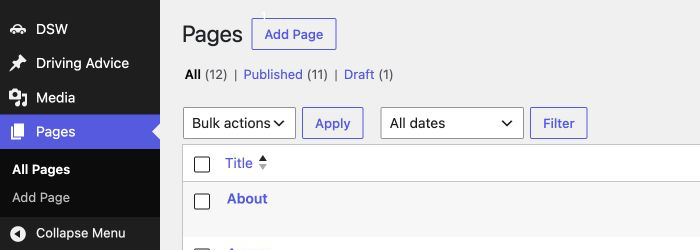
Do not choose Add Page for this task. You are extending an existing page. If Pages is hidden, use Show full WordPress administration in the top toolbar first.
2. Keep the DSW information and your extra content separate
If your editor shows a Driving-school page notice, read it. It explains which DSW screen supplies that page’s main information. The built-in DSW → Help & Guide also contains these instructions.
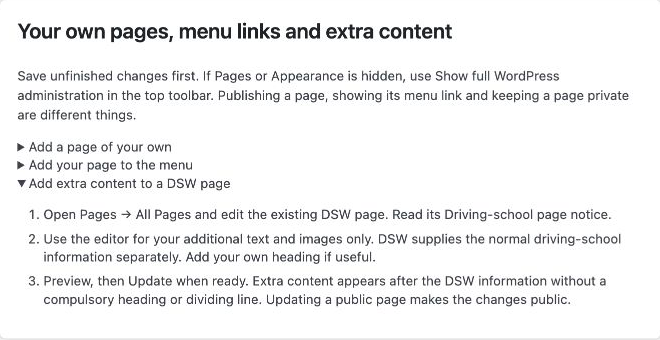
You may see only the additional content in the editor, or an empty writing area if none has been added. This does not mean that the instructor details, prices or other DSW information have disappeared. DSW supplies them separately on the public page. Do not paste a duplicate copy into the editor.
If extra content is already there, read it before changing anything. Leave content you want to keep in place.
3. Write a helpful heading and a few paragraphs
Click the writing area and add your own words. Press Enter for another paragraph. Use a Heading block for a section title if helpful; a normal section heading is generally level 2 because the page already has its main title.
For example, the demonstration page uses the heading Learning at your pace followed by a short explanation. Write wording that is true for your school rather than copying fictional claims.
DSW does not add a compulsory More Information heading or horizontal line. You decide whether your extra section needs a heading.
4. Add a photograph only if it helps
In the modern editor, use the blue + button and choose an Image block. Upload your image or choose an existing one from the Media Library. Select the image and add useful alternative text describing it, where appropriate.
Only use images you have permission to publish. Do not include private pupil information. Your main instructor/car photographs should normally be managed through DSW’s Instructor & Car screen; an image added here belongs to the extra section.
If your editor has Visual and Text or Code tabs, use Visual to write normally and its Add Media control for an image. You do not need to write HTML, change theme files or add shortcodes. If unfamiliar code is already present, leave it intact and ask DSW before altering it.
5. Preview the whole page
Use View or Preview; the label depends on your editor. Check the whole page, then scroll below the normal DSW information to find your extra section.
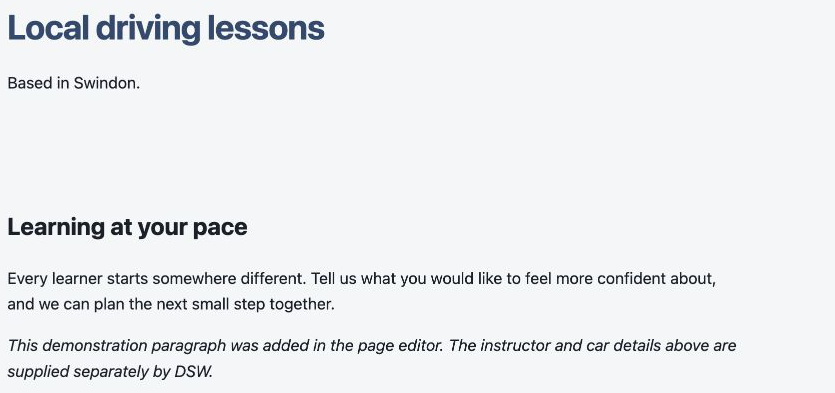
In this real demonstration result, Local driving lessons is supplied by DSW. Learning at your pace and the paragraphs below it are extra page-editor content. The italic demonstration note explains the example; you do not need that note on your own website.
Check spelling, heading sizes, image quality and the phone layout. A preview does not make an existing public page private: visitors can still see its currently saved version.
6. Save when you are ready for visitors to see it
Choose Save or Update, depending on your editor, and wait for confirmation. Saving changes to an already-public page makes those changes public. This is different from keeping a new page as a draft.

Open View Page and check the result again. Confirm that the normal DSW information is still there and that your extra section appears once, in the right place. You do not need another menu link: this is still the same page.
To revise or remove your extra section later
Return to Pages → All Pages and edit the same page. Change or remove only the extra paragraphs or image blocks you intend to change, then save. Do not move the whole DSW page to the bin to remove a paragraph.
Continue changing business information in DSW. If the page editor is blank unexpectedly, the save fails, or the public result looks wrong, stop and contact DSW. Tell us which page and screen you are using, without sending passwords or private pupil details.
Another example: an extra section with a photograph
On our current demo, the About page continues with Small steps. Real-world confidence. after the normal DSW information. The instructor added this heading, text and photograph in the WordPress page editor.
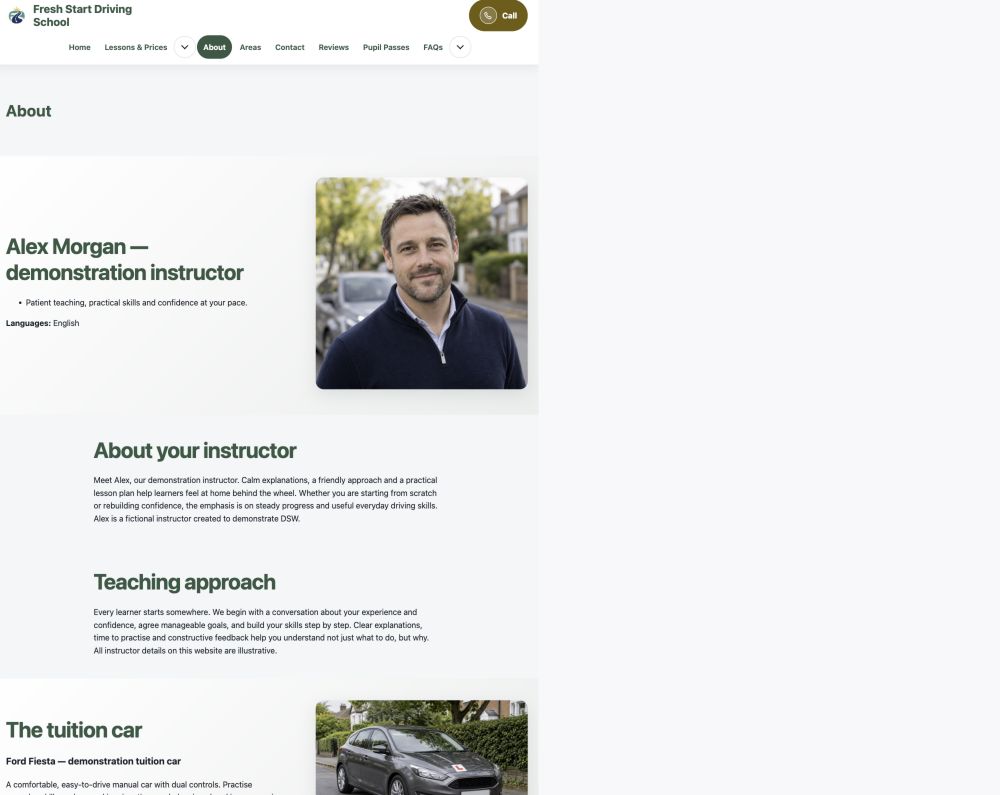
See the example About page on the demo website (new tab). The school details and images are illustrative demonstration content.
Your optional extra content is saved
Adding extra content is optional. Before promoting your website, follow Check your website before sharing it. Return to any guide whenever you need a reminder.