
Add a page about something useful to your pupils, such as what to expect at a first lesson. Start with a clear title and a few short paragraphs; you do not need a complicated layout.
Illustrated video · 2 minutes 20 seconds · No sound
Pause and replay whenever useful. This is an illustrated guide, not a recording of a new page being published. The example website uses fictional demonstration details.
First, choose the right place for your information
Use a new page for an extra subject of your own. Keep using the DSW screens for your school details, lessons, prices and teaching areas. Do not create another copy of a page that DSW already manages.
If you want to add a few paragraphs to an existing DSW page instead, that is a different task. Its normal driving-school information is supplied by DSW separately.
1. Open a new page
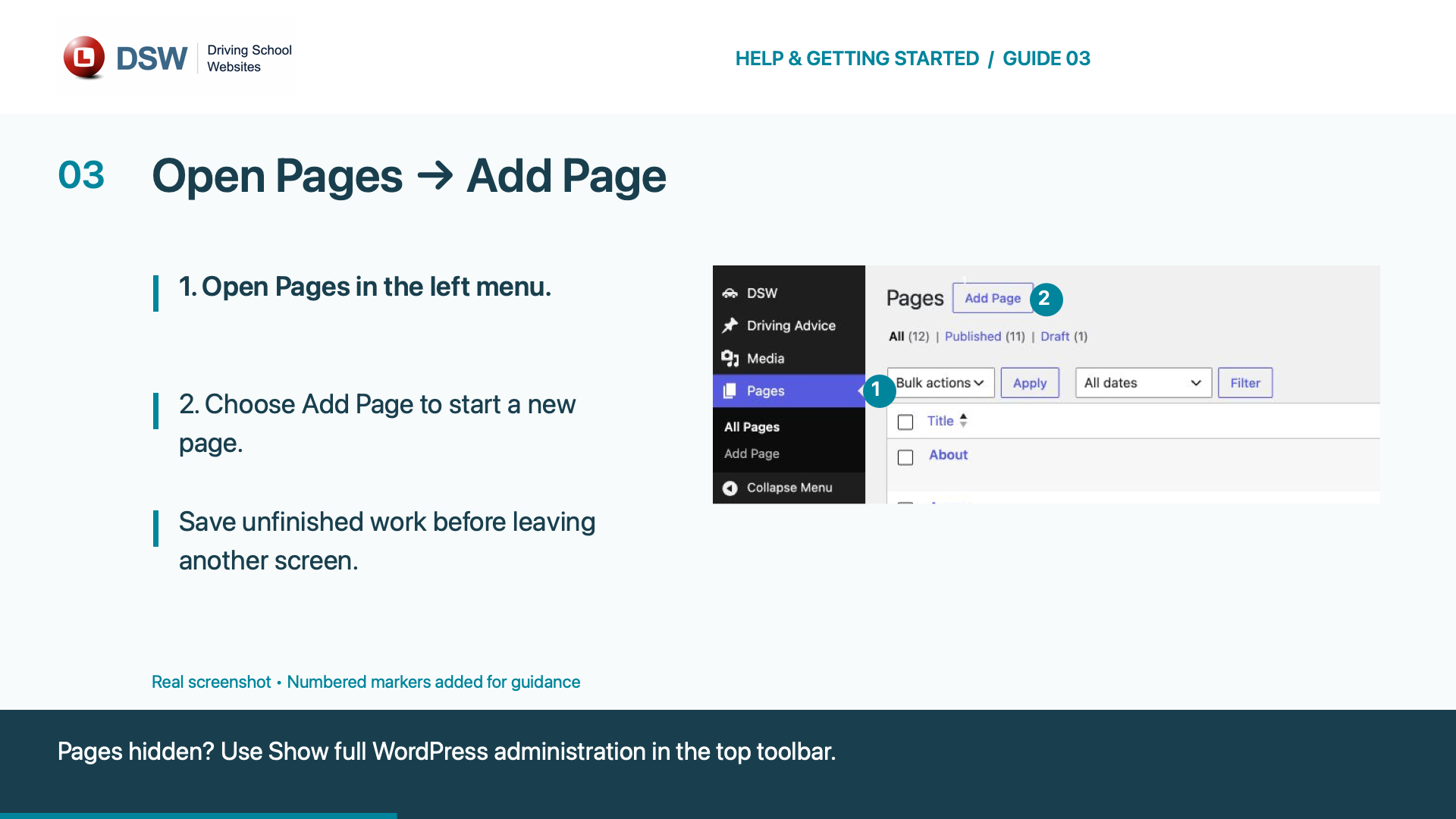
Save any unfinished work first. In the WordPress menu, open Pages → Add Page. Some versions call it Add New Page.
If Pages is not visible, use Show full WordPress administration in the top toolbar. This changes your administration view, not your public website.
2. Give the page a clear title
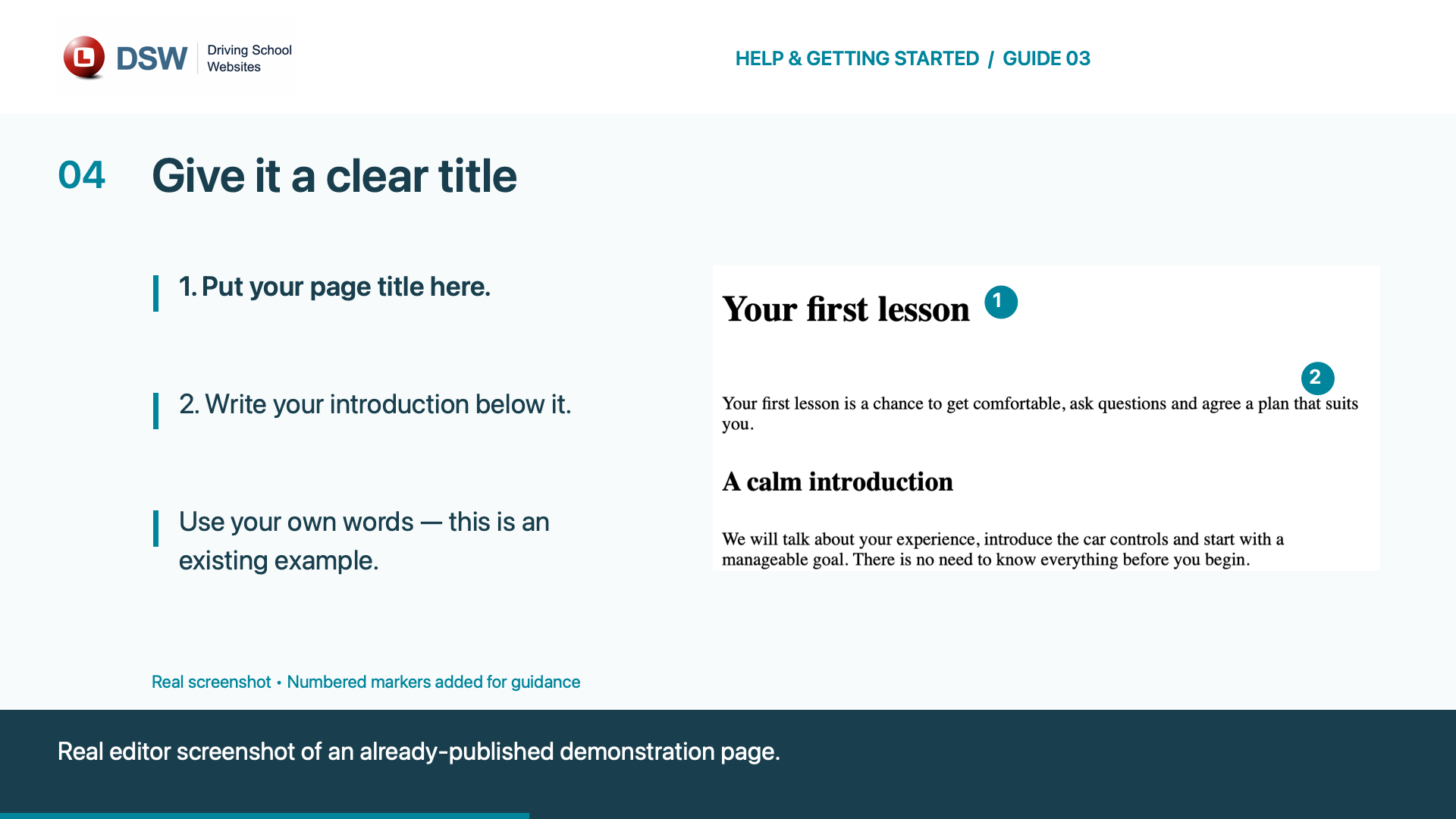
Use a title pupils will understand, such as Your first lesson. Your title normally becomes the page’s main heading, so you do not need to repeat it at the start of the text.
3. Add your words
Click the writing area below the title and type a short introduction. Press Enter to start another paragraph.
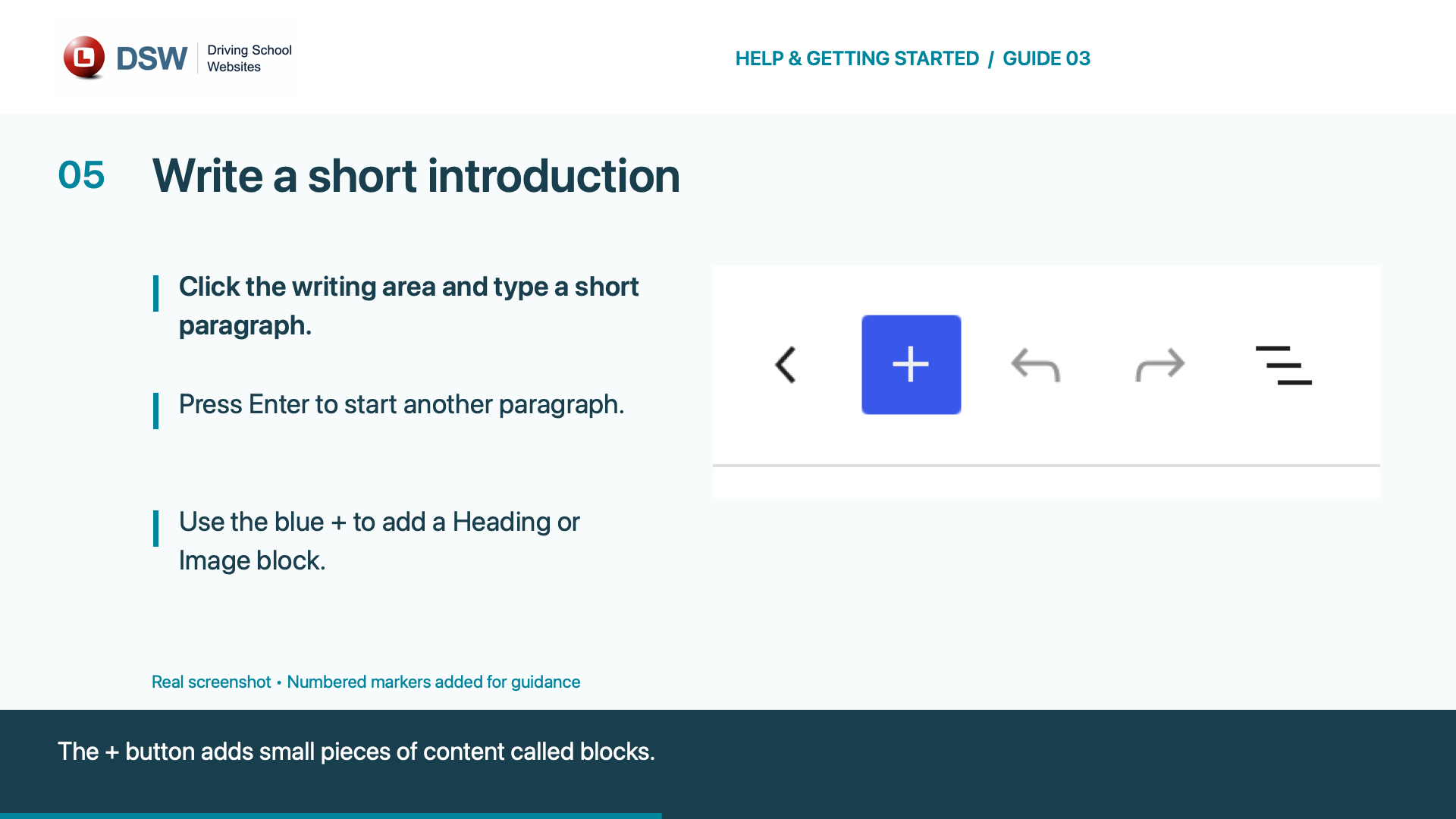
In the modern WordPress editor, each paragraph, heading or image is a block: a small piece of your page. Use the + button to add a Heading for a new section, or an Image if a photograph helps. A simple page can consist entirely of text.
If you see the older editor with Visual and Code or Text tabs, use Visual to write normally. You do not need to enter code.
Write only about what you actually offer. Use photographs you have permission to publish, and give meaningful images useful alternative text describing what they show. Do not publish private pupil information.
4. Save a draft and check it
Choose Save draft while you are working. A draft is not a normal public page.
Use View or Preview to inspect the page. The exact label and position depend on your editor. Check spelling, headings, images and the smaller-screen layout. Return to the editor to make corrections.
Keep the page as a draft if you are not ready. You can find it again under Pages → All Pages.
5. Publish when ready
Read the publication settings, then choose Publish. WordPress may ask you to confirm before the page goes live.
A published public page can be read even if it is not in your menu. Leaving a page out of the menu, or discouraging search engines, does not make it private. Keep unfinished content as a draft.
Example: a simple extra page
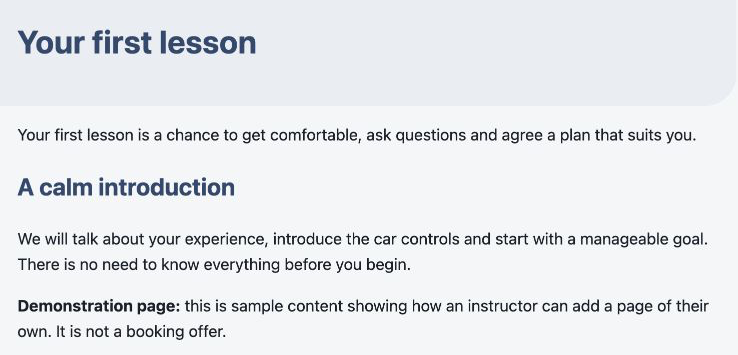
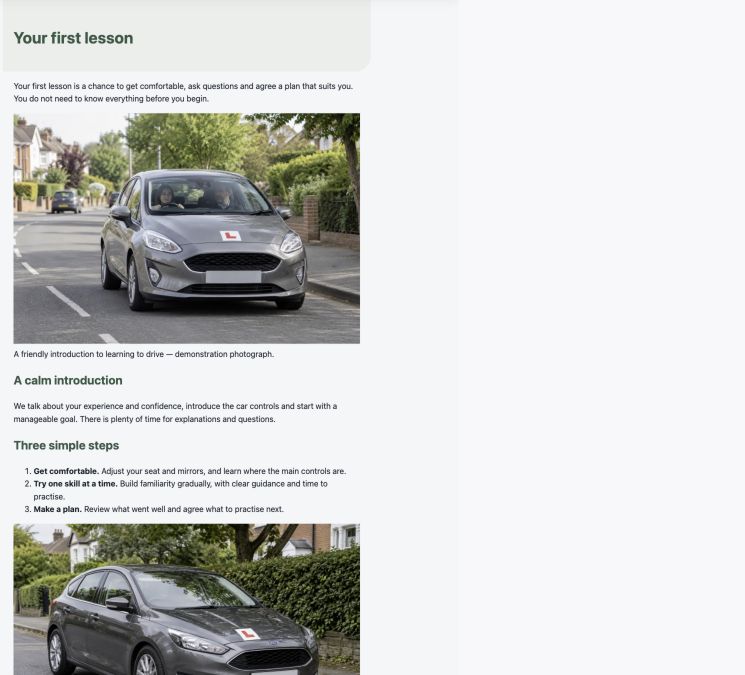
This existing demonstration page has a title, a short introduction and one helpful section. It illustrates the result, not a new publication performed for this guide. Replace the example wording with information that is true for your school.
6. Check the result and its menu link
Open View Page and read the published page as a pupil would. Check it on a phone too.
Publishing does not necessarily add a menu link. Adding your published page to the menu is a separate step, covered in the next guide. Setting a page’s Parent does not by itself arrange the DSW navigation menu.
To change your page later
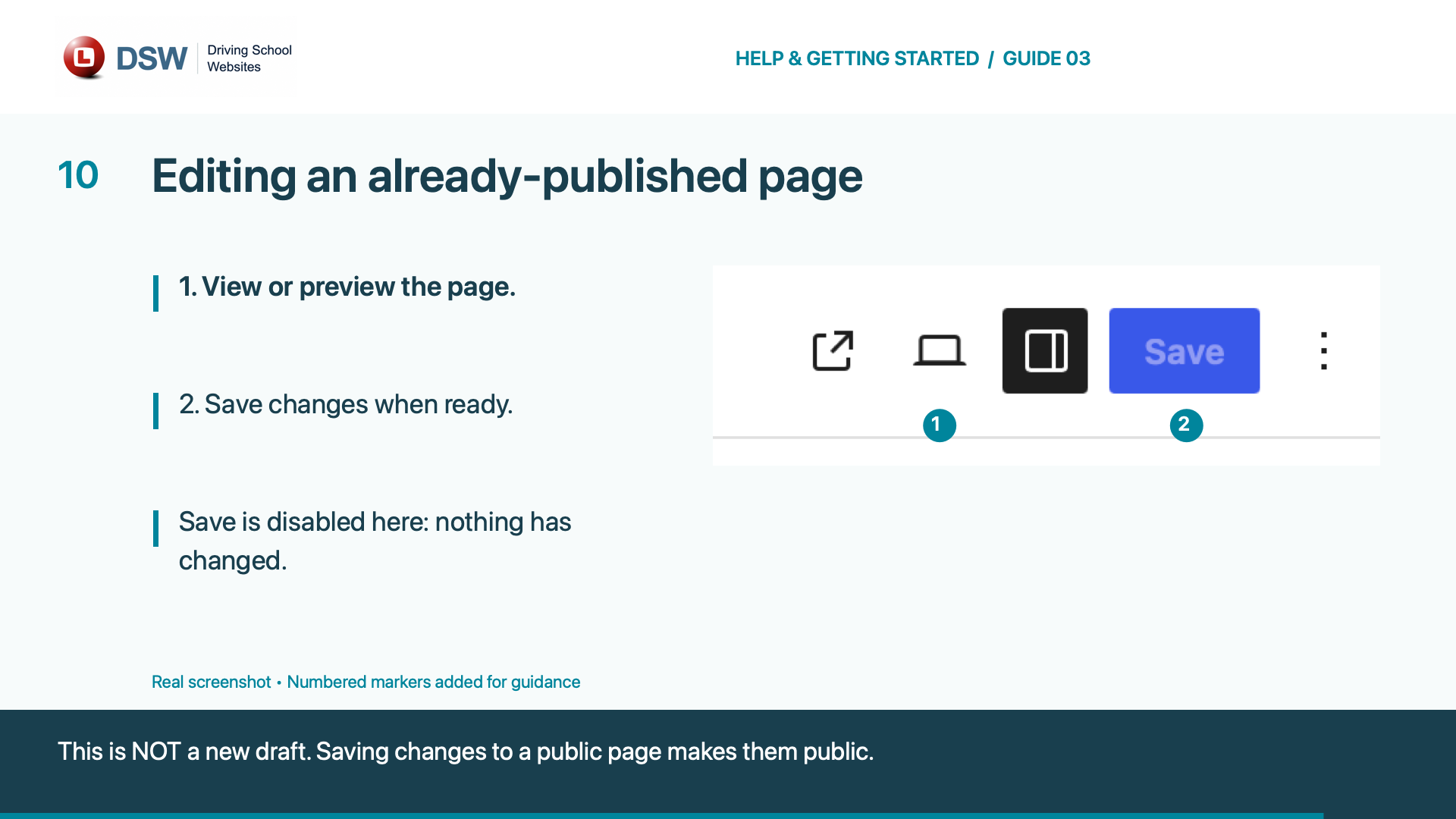
Open Pages → All Pages, find your page and click its title, or point to the title and choose Edit. Review your changes before saving. The button may say Save or Update; saving changes to an already-public page makes those changes public.
If the editor is blank, a save fails or you are unsure which page to edit, stop and contact DSW. Tell us which screen you see and what you are trying to do. Do not send passwords or private pupil details.
Example: a page an instructor added
The current demo includes Your first lesson, an additional page with a short introduction, practical steps and photographs. This is separate from the standard pages supplied by DSW.
Read the full example on the demo website (new tab). The next guide explains how its link was added beneath Lessons & Prices.